Connecting with Claude and ChatGPT
Paste your environment's address into Claude or ChatGPT. Sign in, Allow, done.
Voor kletskousen: Bel met de B03M-babbel-B0X!
010-8700808Your AI tool on B03M, no key needed
With a connection your AI tool talks straight to B03M. Claude or ChatGPT can then read your calendar, say, or search your knowledge base. You sign in to B03M and decide yourself what's allowed. No key to copy.
Your address
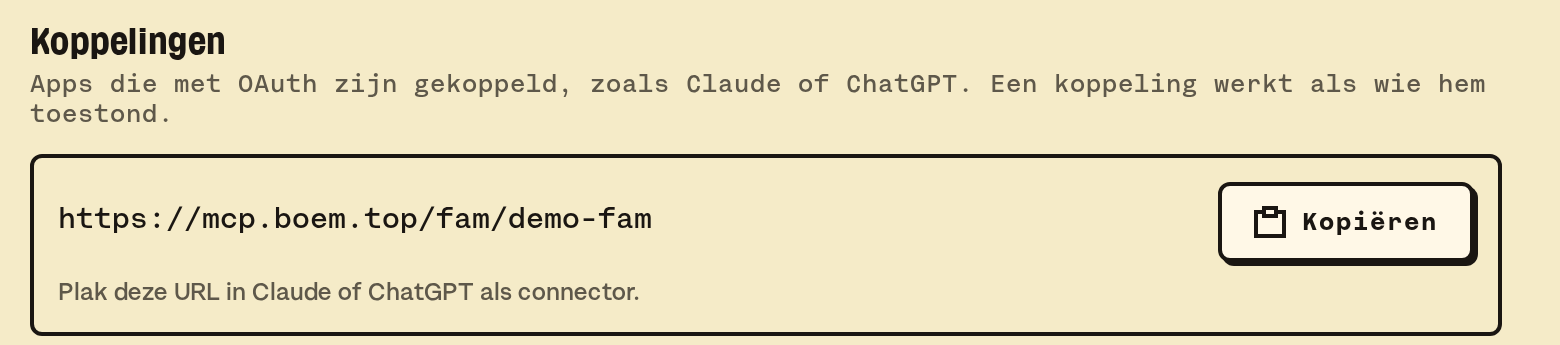
Every environment has its own address. For your family and for your workspace it looks like this:
https://mcp.boem.top/fam/<slug>
https://mcp.boem.top/work/<slug>
<slug> stands for the name of your environment. You don't have to fill it in yourself: B03M shows the whole address, with a Copy button.
- In FAM: Settings → Integrations, under Connections.
- In W0RK: Settings → W0RK → MCP, under Connections.
A parent in the family, or the owner of the workspace, can connect.
Claude
On claude.ai, in Claude Desktop and in the Claude app it goes like this:
- In Claude, go to Customize → Connectors.
- Pick + Add and then Add custom connector.
- Give it a name, B03M for example, paste your address and pick Continue.
- Claude works out the sign in by itself. No Client ID needed. Pick Add.
- Sign in to B03M and pick Allow.
After that you switch B03M on per conversation with the + at the bottom, under Connectors. With free Claude you can add one custom connector. On a Team or Enterprise plan the owner adds it first under Organization settings → Connectors; then you pick Connect yourself.
Claude Code
In your terminal:
claude mcp add --transport http b03m https://mcp.boem.top/work/<slug>b03m is the name in Claude Code; feel free to pick another. Then type /mcp in Claude Code, pick b03m and Authenticate. Your browser opens B03M: sign in, Allow.
ChatGPT
ChatGPT can do it too, but not on every plan. Connecting your own MCP server works in ChatGPT Business, Enterprise and Edu, and only on chatgpt.com in the browser. In Business an admin does it. With Pro, ChatGPT may only read. Other plans don't have it (yet).
- In ChatGPT, go to Plugins.
- Pick the + and then Add custom MCP server.
- Give it a name and paste your address under Connection.
- Pick OAuth as the sign in method.
- Tick I understand and want to continue and pick Create as a plugin.
- Sign in to B03M and pick Allow.
OpenAI changes this screen regularly. Looks different? Check OpenAI's own guide.
What a connection may do
- A connection works as whoever allowed it, never with more rights than you have yourself. More about rights: who may do what.
- Before you pick Allow, you see what the app may read and what it may change.
- Tick Read only, and the app only looks along.
- Connections and SM1TH keys count together. At the maximum? Revoke one first.
Revoking
Under Connections you see every app, with what it may do, who allowed it and when it last did something. Revoke locks it out: the app's next request fails. You revoke your own connection yourself, the owner can revoke any connection.
What it doesn't do (yet)
- Sending mail or running Rapid Reply. That stays with you.
- Writing straight into your knowledge base. That always goes through a suggestion.
- Connecting ChatGPT from your phone. That only works in the browser.
Rather use a key, for another tool? That's in SM1TH. About AI in B03M itself: AI in B03M.
B03M gaat stap voor stap open. Kies je lijst, dan nodigen we je uit zodra er plek is.
Laatst bijgewerkt op 29 oktober 2026.